Today we launched the Aisle Prompts MCP server. Your Aisle Prompts are now available directly in Claude Code, Cursor, Copilot, and anything else that supports MCP Directory servers.
We use prompts constantly while building Aisle: reviewing code for security issues, styling components to our design system, scaffolding integrations. These prompts have our actual conventions and architecture docs attached as context. We also switch development tools regularly. Cursor this month, Claude Code next month, whatever's best. Maintaining the same prompts across multiple editors wasn't something we wanted to do.
So we built this. Prompts live in Aisle, get distributed via MCP server, and show up in any compatible editor. Update a prompt once and it deploys to everyone immediately. The team picks their tools. No migration path, no lock-in, prompts run with each developer's local context and settings.
Aisle already lets you build prompts once and deploy them everywhere: API endpoints for your application, multi-model chat for your team, workflows for automation. Now development tools are on that list too.
Why MCP prompts matter
The problem with keeping prompts in your editor is that they don't travel. You write a good security review prompt in Cursor, someone else on the team uses Claude Code, a third person is on Copilot. Everyone either maintains their own version or nobody uses it.
MCP prompts fix this by decoupling where prompts live from where they run. The prompt lives in Aisle with its full context, versioning, and access controls. The editor just calls it. When you update the prompt, everyone gets the update the next time they use it. No syncing, no copying, no drift.
For teams who care about consistency in how AI is used in their codebase, this matters. One person improves the code review prompt and the whole team benefits. Someone adds your latest architecture docs as attached context and it's there for everyone, in whatever tool they're using.
Getting started
Creating the server
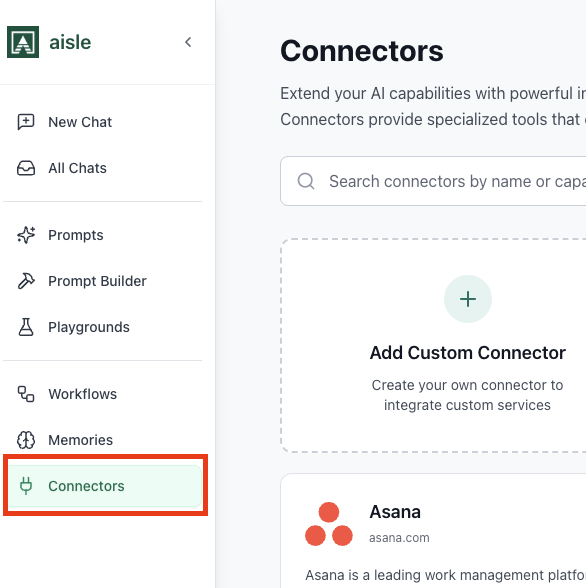
Go to the Connectors section in Aisle and click to create a new prompt directory server.
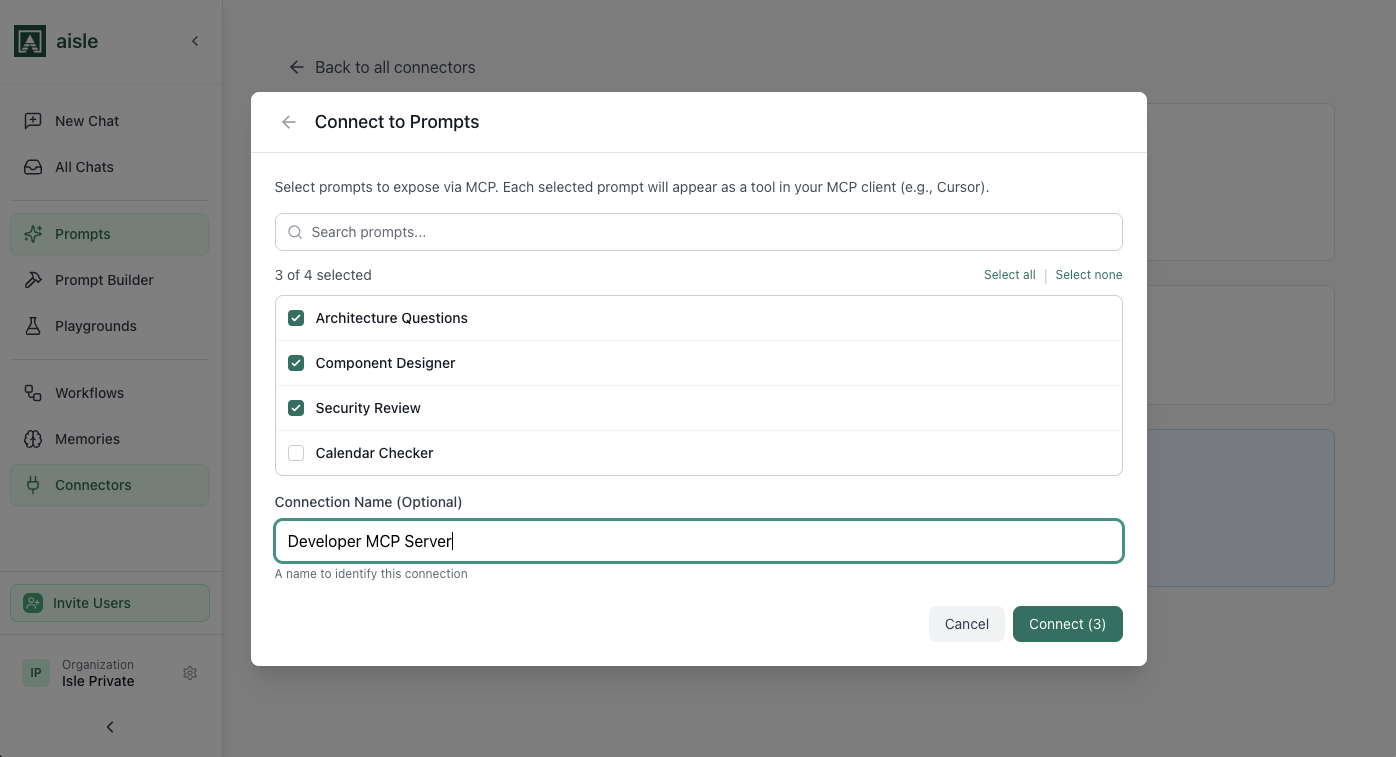
Give it a name. "Development Prompts" or "Security Review Prompts" works fine. Then select which prompts to include. You can change this later.
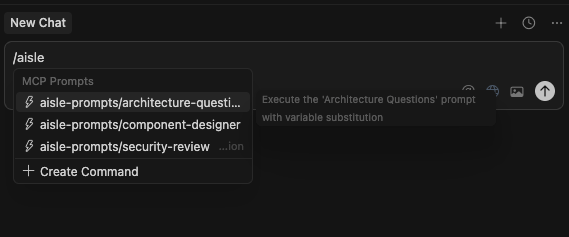
Click Create. You'll get a config block and an access token. For Cursor and Claude Code, paste the config into MCP settings.
Using prompts in your IDE
Once the MCP server is connected, type / and your prompts will be there. Select one and it runs locally with your current context and settings.
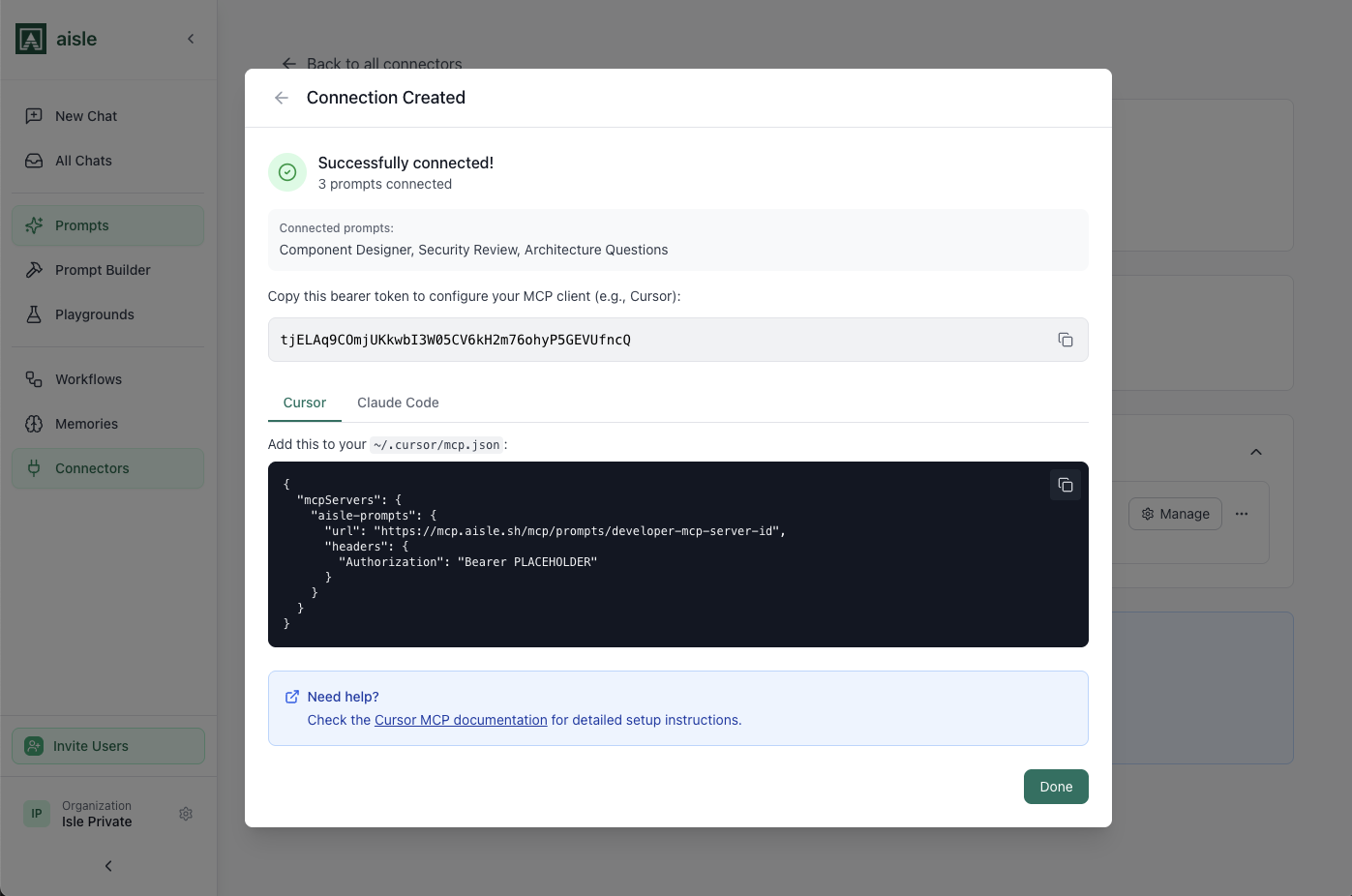
That's it. No prompt text to paste, no remembering which version is current. The prompt runs exactly as it's configured in Aisle, with whatever files and context you have open.
Managing the server
Click Manage to add or remove prompts from the server, generate access tokens for team members, or revoke them individually.
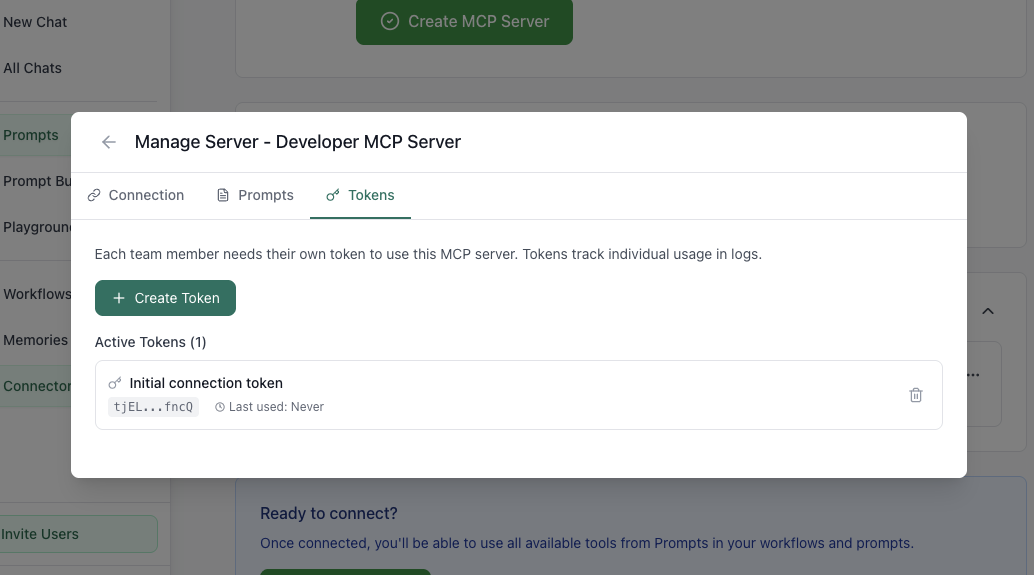
You can run multiple servers if you want to keep things organized. One for security review prompts, one for component styling, one for integration scaffolding. Each server gets its own access token, so you can give different team members access to different sets.
What this looks like in practice
We have a prompt for reviewing code against our security guidelines. It has our actual security checklist attached as context. When someone on the team types / in Cursor or Claude Code, it's there. They select it, the prompt runs against whatever code they have open, and the output reflects our actual standards, not generic advice.
When we update the checklist, we update the attached context in Aisle. The prompt in every editor updates the next time someone uses it. No Slack message reminding people to copy the new version somewhere.
That's the thing with MCP prompts that's easy to miss: it's not just about convenience. It's about whether the prompts your team is actually using reflect your current thinking or last month's thinking.